
Invest In Yourself, and Others!
WELCOME to Week 5
Podcasting Made Easy: How to Launch a Successful Podcast in 8 Weeks – or Less!
Post-Production: Converting, Editing, and Condensing Your Podcast Episodes
Session Includes:
- Course Welcome & Overview
- Brief Recap of Last Week
- Post-Production
- Free & Low Cost Editing Solutions
- Step-by-Step Instructions & Tutorials
- Tips & Tricks Dave Learned the Hard Way
- This Week’s Assignment: Record & Edit Your First Episode! 🙂
- Next Week’s Lesson: Posting Your First Episode to Your Podcast Host, Directories, & Website!
Watch the Videocast Replay💻
Listen to Audio Replay🎧
This Week’s Outline & Instructional Videos📝

MONEY vs. TIME
When it comes to post-production, you will be involved. Whether it is though quality interview notes that you learned to take in PME’s Week 4 lesson and you outsource it to a post-production studio, or through a hands-on editing experience you do yourself, either way, you will be vested in the podcast post-production. The question is, will it be more through money (outsourcing) or time (do it yourself)?
If you have the budget and choose to outsource, great solutions can be found at websites like Fiverr and Upwork.
If money is tight, but you have the time, here are the steps you can take to produce a quality podcast episode on a tight budget.
DIY Editing (Do It Yourself)
Step 1: Download Your Episode Recording
- Whether you used your smartphone, Squadcast, Zoom, or another recording solution, you’ll need to download the episode to your computer.
- Here’s a sample video of how to download your .wav episode files via Squadcast:
Step 2: Convert the Audio File to a .wav File (if needed)
- If your downloaded file(s) are not in an editable format for the software you are using (i.e. your raw audio file is an MP4 from an iPhone and you need it to be a .wav file for editing with Audacity), you can use a free tool such as MP4 to MP3/wav Converter to get the job done.
Step 3: Editing Your Episode
- While there are MANY audio editing solutions out there, the top two free solutions are Audacity (PC & MAC) and Garage Band (MAC) in my humble opinion and experience. This tutorial will use Audacity to edit the podcast episode. However, any solution you can use to get the job done will work. Use what you can afford and are comfortable with.
- There are MANY Audacity tutorials online at YouTube and their website. Not only is the software pretty intuitive, but these videos can guide you through almost any challenge you face. 🙂
Episode Sample Editing Outline
- Intro
- Warm Welcome
- Theme Song/Music
- Episode Introduction/Overview
- Introduce Guest/Theme
- Why Someone Should Listen/How Will This Episode Benefit Them
- Sponsor Commercials (as applicable)
- Calls to Action
- End of Episode Teaser
- Transition Sound
- Body
- Core Interview, Monologue, or Story
- Sponsor Commercials (as applicable)
- Conclusion
- Episode Summary
- Thank:
- Guests
- Team
- Sponsors
- Listener Reviews
- Listener Special Offer Reminders
- Call to Action
- Tease Next Episode
- Final Thought(s)
- Theme Song/Music
- Output File
- Have your episode artwork ready (preferably a 3,000 x 3,000 png file)
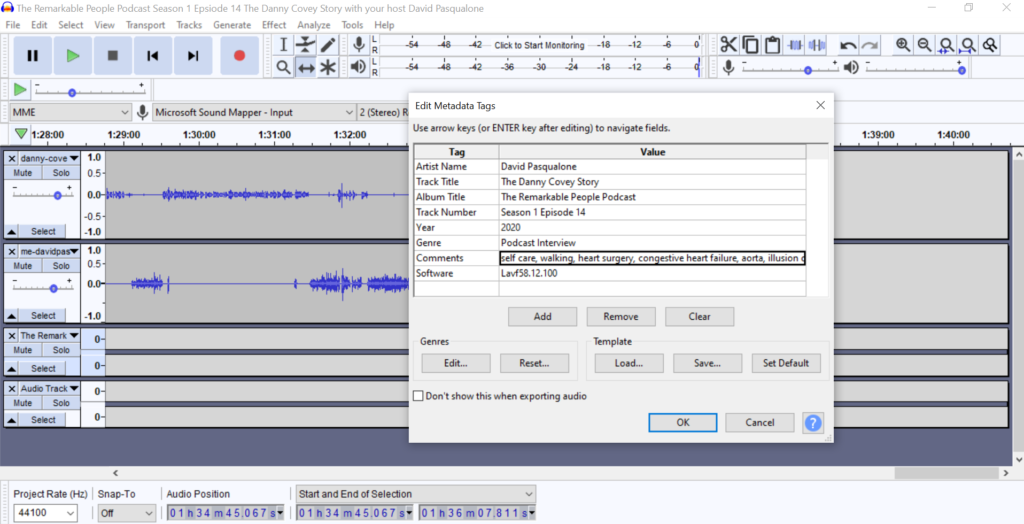
- Be consistent in your post-production files AND load it with applicable episode keywords.
- Here’s a sample Audacity metadata tag section before the final export as a .wav file:
Step 4: Clean Verbal Clutter & Transcribe Your Episode (optional)
- Why spend hours trying to manually remove all the “uhms”, “hmms”, and extra “and’s” when you can use software to do it for you?
- Why pay and use another solution for transcripts when the same software can do it for you?
- Hence the beauty of Descript. Descript is a robust software that not only removes the verbal clutter in seconds and transcribes your entire podcast, but it also does a lot more! The honest truth is though, at this point I simply haven’t had the time to learn to use it. However, for the verbal clutter editing and the transcription service alone, you’ll get your moneys worth with Descript!
Step 5: Audio Balance & Condense Your Final Episode File Size
- Now that you have recorded your episode, edited your episode, and transcribed your episode, there are two crucial steps left to create a quality and efficient podcast episode:
- Balance the Audio, and
- Condense the Final File Size to an MP3.
- Balancing the audio can’t be any easier using a free tool called Auphonic. Auphonic allows you to do both of these crucial steps in one easy process!
- What balancing the audio does is take the highs and lows in the episode volume and makes a smooth and easy to listen to audio file.
- Converting the final audio file from a large .wav file to a small MP3 file not only makes for faster uploads and downloads, but also saves you money with many podcast hosts like Libsyn who charge by the mb, not length of your episode.
- Check out this short tutorial to see just how easy using Auphonic is:
That’s it! Easy, right?😉
Actually, it is and you got this! 💪
Links to Solutions Mentioned🎯
Click the "+" Symbols Below to Open the Sections & Access the Hyperlinks
Editing Software
| Garage Band (Mac & iOS Devices) | Audacity (PC, Mac, and Linux) | Descript |
| MP4 to MP3/wav Converter |
Cover Art & Intro Reel Resources
| Fiverr | Upwork | Sound Cloud |
| Gentleman who did our podcast cover art & logo for Season 1 | 99Designs | Audio Jungle |
| Gentleman who did our podcast intro/outro music reel | Local Agency | |
| Gentleman who did our Season 2 video intro/outro reel |